You can now claim your business in ChatGPT. OpenAI’s Business Hub, at chatgpt.com/business-hub, lets an owner find their listing, verify it, and then confirm their identity with a government ID. We claimed the listing for Lead Nurture Close™ on November 12, 2026, using a DNS record on our website. The claim cleared about two minutes after the record went live. Here is what we saw, what to check first, and what claiming does and does not do for you.
Ask AI About This Guide
Opens your AI assistant with a question ready to send.
Key Takeaways
- ChatGPT already shows listings for many local businesses, with details like an address, phone number, hours and rating. Ours was there before we claimed it.
- Claiming lets you manage what you tell ChatGPT about your business, such as your website, description, category and logo, once your ID check is approved.
- You can claim only a listing that already exists. A new listing for a business customers visit is on a waitlist for now.
- If you verify with a DNS record, the record expires 24 hours after ChatGPT shows it. Add it the same day.
- Claiming is not a ranking shortcut. OpenAI says it does not guarantee more visibility.
Why does claiming your business in ChatGPT matter?
Homeowners can now ask ChatGPT who to hire, and ChatGPT can answer with local businesses. When it does, it can show a small business card with the name, category, address, phone number, hours and a link to the website.
That card can exist whether or not you claim it. Ours already showed our hours, a phone number, our category and a 4.6 rating before anyone at our company opened Business Hub.
Claiming gives you a seat at the table:
- Your information. After your claim and ID check are approved, OpenAI lets you update your website, business description, category and logo, plus delivery and return policies if you sell products. OpenAI reviews changes before they appear, and ChatGPT may still use other sources.
- Insights. After ID approval, your dashboard shows how often ChatGPT mentions your business, how many people view your profile, and how many click through to your website.
- A verified check. The blue check appears on your profile once your identity verification is approved.
What claiming does not do matters just as much. OpenAI states that claiming does not guarantee increased visibility, and that advertising does not influence ChatGPT’s independent answers. Claiming gives you a say in your information. It does not buy you a spot in the answer.
Can my business claim a ChatGPT listing yet?
The deciding question is whether a listing already exists, not whether you have a storefront. We searched several home service businesses we work with to see how this plays out.
| Your situation | Can you claim it today? |
|---|---|
| A listing exists with your street address | Yes |
| A listing exists for a service-area business, with the address hidden | Yes. These show only a city and ZIP code. |
| A listing exists that shows only your website | Yes |
| No listing exists, and you travel to your customers | Not yet. ChatGPT’s add options do not fit this case today. |
| No listing exists, and customers come to your location | Not yet. You can join a waitlist. |
| No listing exists, and you run an online store | Possibly. ChatGPT offers an add option for businesses that sell through a website. We did not test it. |
In our first round of searches, most of the businesses we checked already had a listing, including service-area contractors. If your name is common, search your name with your city. One name we searched returned four results, three with the exact same business name in different towns.
How do you claim your business in ChatGPT?
These are the steps we followed. Steps 1 through 6 took us about ten minutes, plus the time for our DNS change.
Step 1: Read the terms, then open Business Hub
OpenAI’s Businesses in ChatGPT Terms say that using Business Hub means you accept them. The search page itself says “By continuing, you accept.” So read the terms before you start. Among other things, they give OpenAI a permanent license to the basic business information you submit for display, include a release and an indemnification clause, and say OpenAI’s AI assistant may call your business on behalf of its users, with an opt-out link. The owner, or someone authorized to sign for the business, should be the one doing this. (This is a summary, not legal advice.)
Then sign in to ChatGPT with the account you want to manage your listing, and go to chatgpt.com/business-hub. The page can take several seconds to load. In our account, Business Hub did not appear in the ChatGPT sidebar until after we had claimed our listing, so go straight to the address.
One warning: chatgpt.com/business is a different page. That one sells ChatGPT team plans. It has nothing to do with claiming your listing.
Step 2: Search for your business and select your listing
Type your business name in the search box. Results show a name with a street address, a city and ZIP code, or a website.
A “Create” option appeared at the top of every search we ran. Skip it if your listing is already there. A second listing for the same business only splits your information.
Select your listing, then select Get started.
Step 3: Confirm the account
The next screen shows the email address of the ChatGPT account you are signed in with. That account will manage your listing. Check it before you select Continue. The terms notice appears again on this screen.
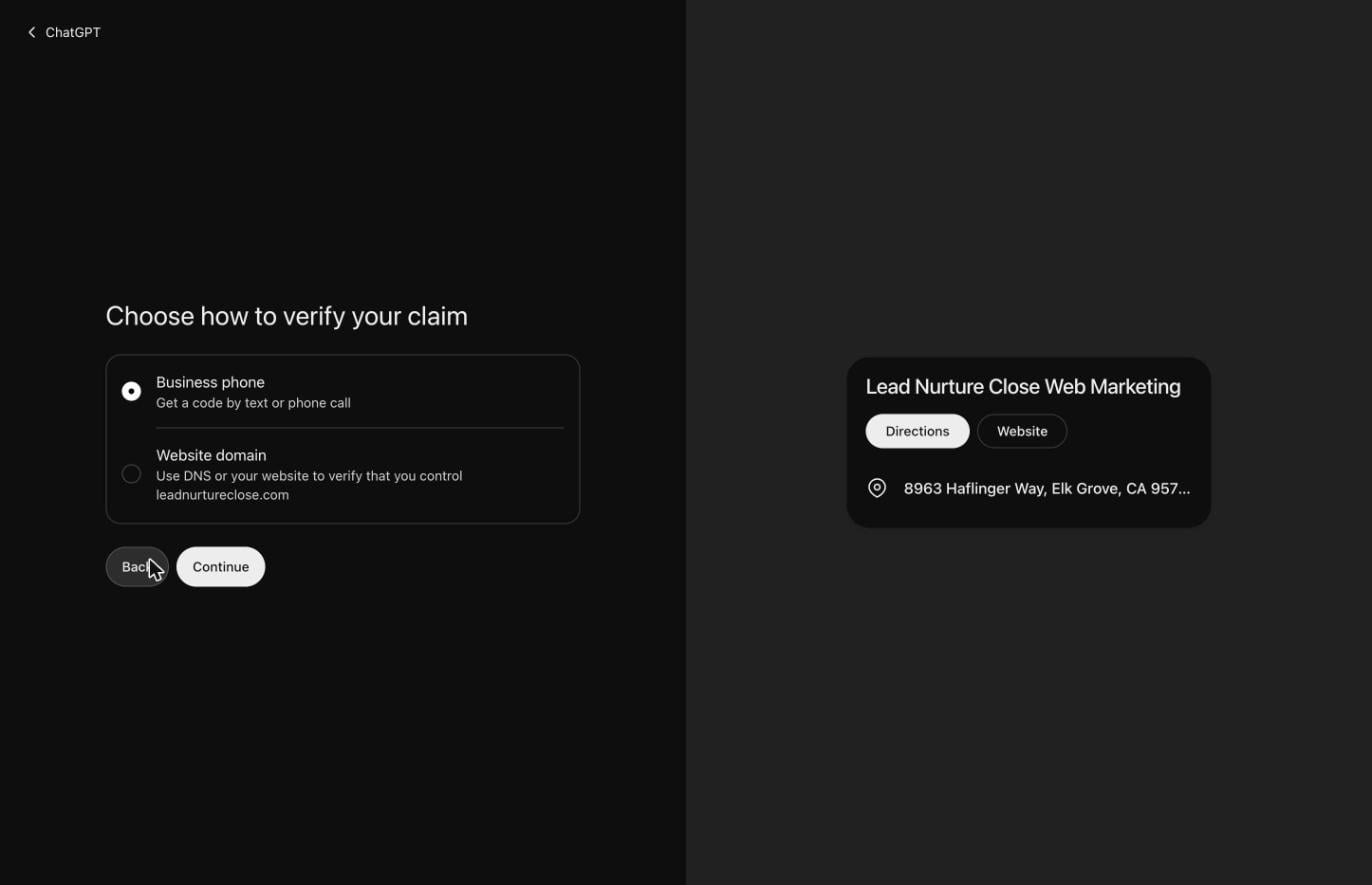
Step 4: Choose how to verify
ChatGPT offers verification methods based on your listing. OpenAI lists business phone, business email, website domain and Shopify. Ours offered two:
- Business phone. ChatGPT sends a code by text or phone call to the number on your listing.
- Website domain. You prove you control the website on your listing by adding a DNS record.
Before you choose phone, look at the number on your listing. The code goes to that number, so make sure it is one you can answer.
Step 5: Add the TXT record (website domain only)
If you choose website domain, ChatGPT shows a DNS record with three parts: a type (TXT), a name or host (openai-business-claim), and a long value. Each part has a copy button.
The record expires 24 hours after ChatGPT shows it. Add it to your domain’s DNS settings the same day, exactly as shown. Once the record is live, return to ChatGPT and select Verify domain. Ours passed on the first try, within a minute of the record going live.
Step 6: Finish verification
After you select Verify domain, ChatGPT shows that your claim is under review, and Business Hub lists your business as Pending. Open the pending listing. You may see a Finish verification button. It is easy to miss. Ours showed it, and selecting it completed our claim on the spot, about two minutes after the DNS record went live. OpenAI says review times vary, so yours may take longer.
Step 7: Verify your identity
Your claim is approved, but you cannot edit your listing yet. OpenAI requires an identity check through Persona, the verification service it uses, before you can publish changes, add products or view insights. The blue check appears only after this check is approved.
We have started this step but not finished it, so this part comes from what we saw on the first screen and from OpenAI’s Help Center. Have a government-issued ID and your business registration details ready. The first Persona screen asks you to consent to the processing of biometric information. Your business name, address and any registration or tax number need to match your official records. OpenAI reviews the submission and emails you a decision.
What can you do after your claim is approved?
Your Business Hub dashboard has three main areas:
- Overview. Mentions, profile views and website clicks over the last 7 or 28 days. OpenAI shows these after your ID check is approved, and a new listing may show them as blank at first. OpenAI says a blank metric can mean there is not enough activity yet to report.
- Products. Businesses that sell products can share them with ChatGPT after identity verification.
- Agent builder. OpenAI is rolling out business agents that answer customer questions. Ours showed “Agent builder isn’t available yet,” so do not count on it today.
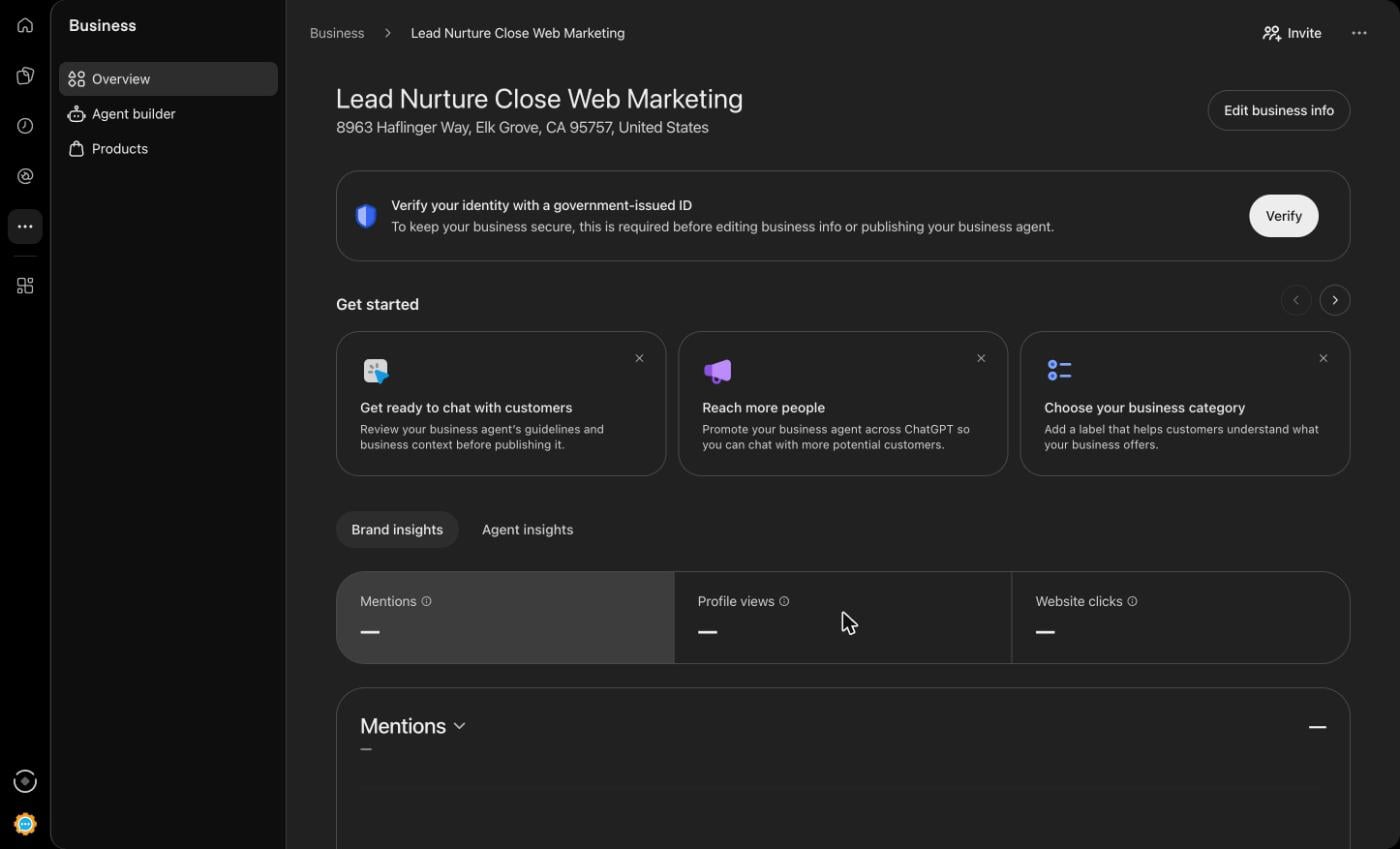
You can also select Invite to add business admins. Each person signs in with their own ChatGPT account.
What mistakes should you avoid?
- Creating a duplicate. Use your existing listing, not the Create option.
- Claiming from the wrong account. The signed-in account becomes the manager of your listing.
- Letting the TXT record expire. You have 24 hours from the moment ChatGPT shows it.
- Choosing phone verification for a number you cannot answer. Check the listing’s number first.
- Expecting a ranking boost. Claiming gives you a say in your information. It does not promise placement.
- Mismatched records. Your name and address should match your official registration before you start the identity check.
Where does this fit in your marketing?
ChatGPT does not rely only on the details you submit. It also draws on other sources. So a claimed listing works best on top of the basics: accurate business listings everywhere customers look, a steady flow of real reviews, and a website that answers the questions your customers actually ask.
Claiming your listing is step one. Real people and AI handle the rest, and the rest is where the results come from.
Already a Lead Nurture Close™ client? You start the claim from your own ChatGPT account. If you choose website domain, send us the TXT record or a screenshot the same day. If we manage your domain, we add the record and tell you when it is live. After approval, we will tell you which address to invite as a business admin, and we will help keep your details accurate.
Not a client yet? Talk to our team and we will check whether your business already has a ChatGPT listing.
Frequently asked questions
Does it cost anything to claim my business in ChatGPT?
We paid nothing to claim ours. OpenAI says you do not need an Ads account or a ChatGPT Enterprise agreement to claim an eligible business.
How long does it take?
Steps 1 through 6 took us about ten minutes. Our claim cleared about two minutes after our DNS record went live. The identity check is a separate review, and OpenAI says review times vary.
Do I need a website to claim my business?
Not always. OpenAI offers several verification methods, including business phone. In our case, the options matched what was on our listing: a phone number and a website.
Can my marketing company claim my business for me?
The owner or an authorized representative should start the claim and complete the identity check. After your claim is approved, you can invite your marketing team as business admins.
Will claiming my business make ChatGPT recommend me more?
Not by itself. OpenAI says claiming does not guarantee increased visibility. It gives you a say in the information ChatGPT has about you.
Steps 1 through 6 verified on November 12, 2026 by claiming our own listing. Step 7 and the after-approval details are from OpenAI’s Help Center article “Setting up your business on ChatGPT” and what we saw before completing the identity check. OpenAI may change this process, and availability depends on business location and type. ChatGPT and OpenAI are trademarks of OpenAI. Lead Nurture Close™ is an independent agency and is not affiliated with or endorsed by OpenAI.